


Release 6.6.0: Trips Invalidation and Multiple Vehicle History
Version: 6.6.0
Release 6.6.0 gives you more control over tracking data through Trips Invalidation, and adds Multiple Vehicle History to inspect several vehicles’ paths together.
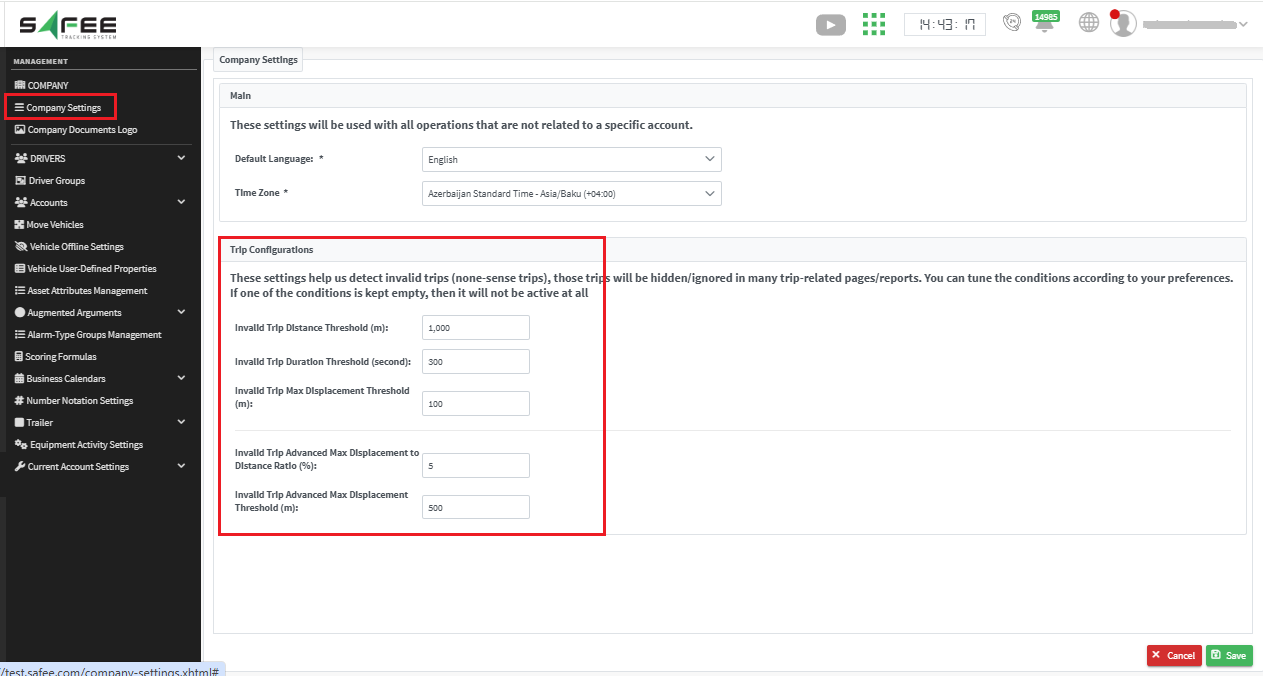
- The default values were chosen carefully. If you are not sure what to set, keep them to protect your data.
- Your settings apply from the moment you click Save; old trips are not affected.
- Invalid trips, according to your settings, are excluded from all trip reports.
- You can always check invalid trips on the Trips page with the new filter.
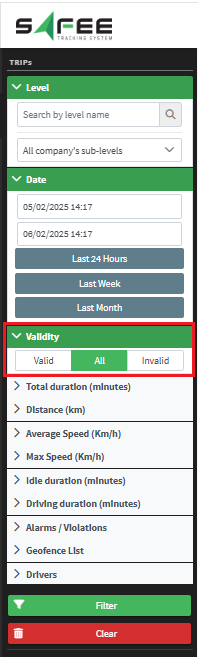
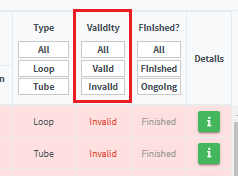
The filter requires a new permission from the partner. Invalid trips are highlighted in pink, and a new filterable column in the report output makes them easier to track.
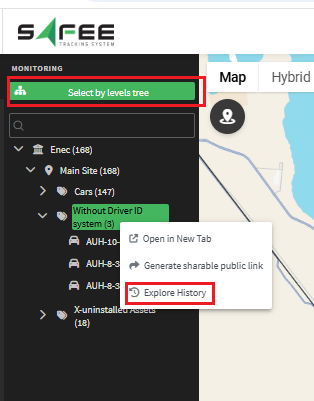
- From the company tree, right-click the target level and choose Explore History, if the number of vehicles under it is within the allowed maximum.
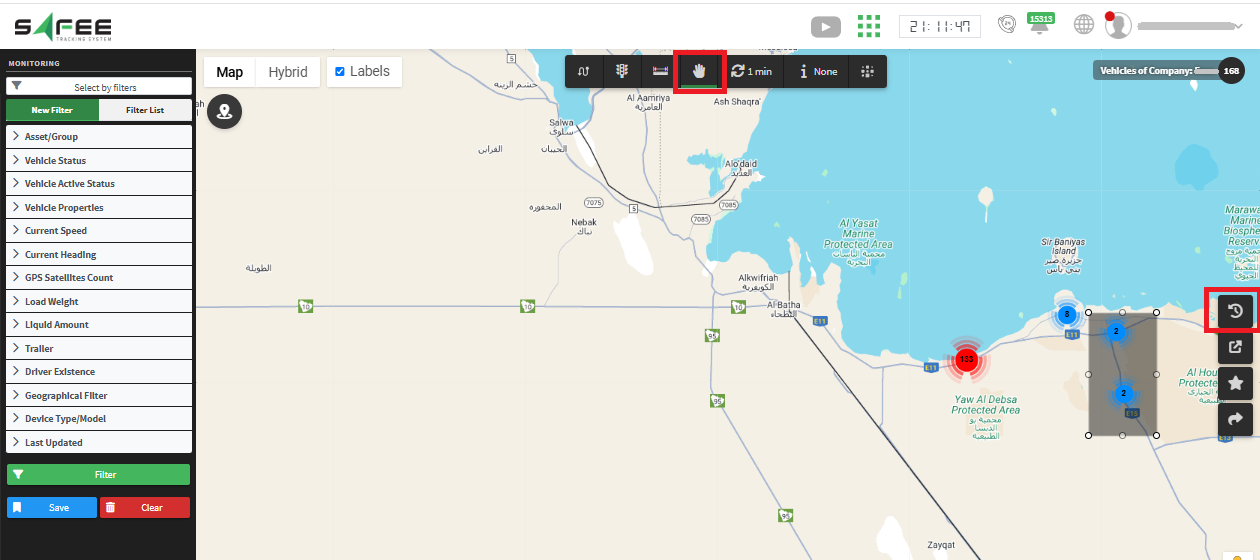
- Or select the vehicles directly on the map: click the Start Selection icon, choose the target vehicles, then click the Explore History icon that appears on the map to open the history page.
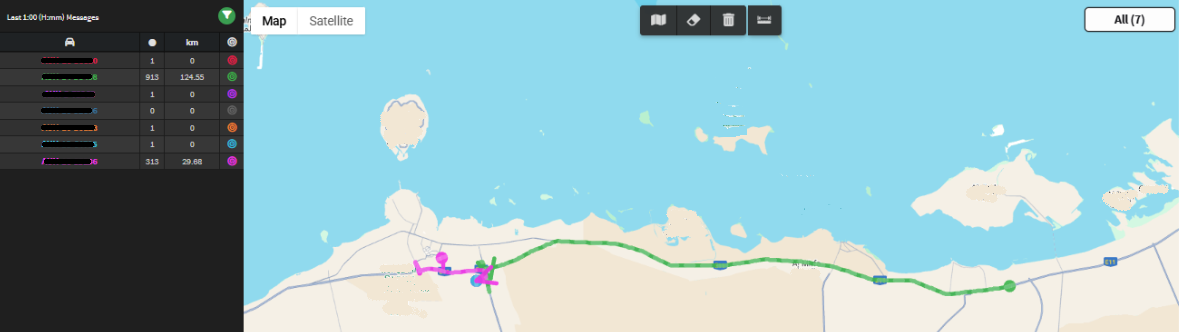
On the history page you see the paths of all selected vehicles for the last hour, each vehicle in the same color as its path on the map. Set any filter you need, and click a vehicle’s plate number in the side table to see its details.
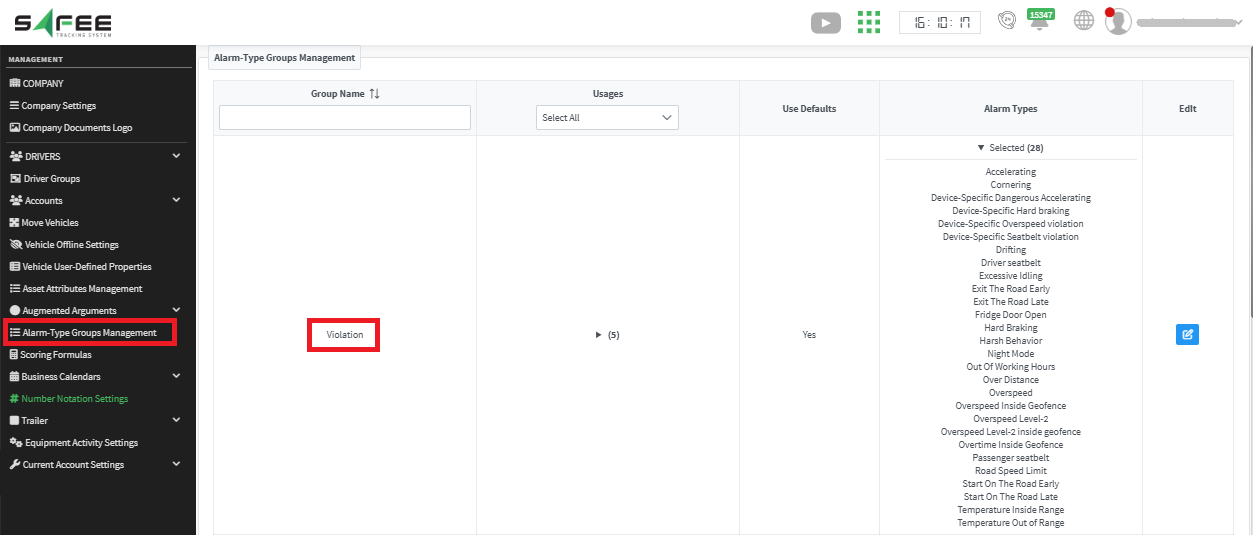
We also improved the Alarm popups on the vehicle history map, which are now richer and easier to use. The title color follows your settings on the Alarm Type Groups Management page: red if the alarm is classified as a violation, grey otherwise.
For the official release notes, see Release 6.6.0 in the Safee documentation.
Ready to improve your fleet operations?
Tell us what you would like to improve. A Safee specialist will reply by email.
Usually replies within one business day • No sales spam
Your details are used only to respond to your request. Privacy Policy