

Safee Updates

Release 6.10.1: Driver Groups and WASL IMEI Warning

Version 6.10.1
Choose a release 6.10.1

Safee release 6.10.1 focuses on access control and better reporting: driver groups separated by account with a dedicated permission, temperature and humidity in the geofence movement report, a WASL warning when IMEIs differ, and a cleaner audit log explorer.
Driver Groups: tighter control at the account level

The Driver Groups feature now gives better account-level control and more secure access for both company and client accounts.

Account-based driver groups

Client accounts manage and view only the driver groups and drivers of their own account:

  • Client accounts only see driver groups belonging to their account.
  • Only drivers belonging to the client account can be assigned to its driver groups.
  • Client accounts can create, edit and delete their own driver groups.
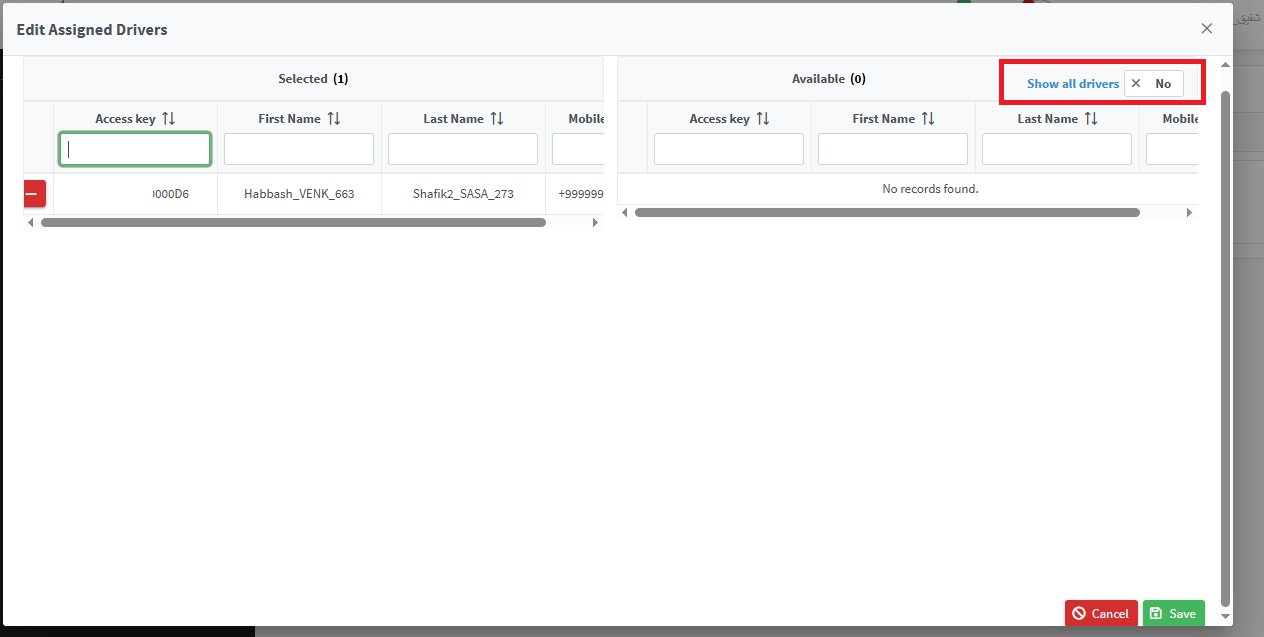
  • When Show All Drivers is enabled, client accounts see only drivers belonging to their account.
Driver groups scoped to the client account

New permission for driver groups

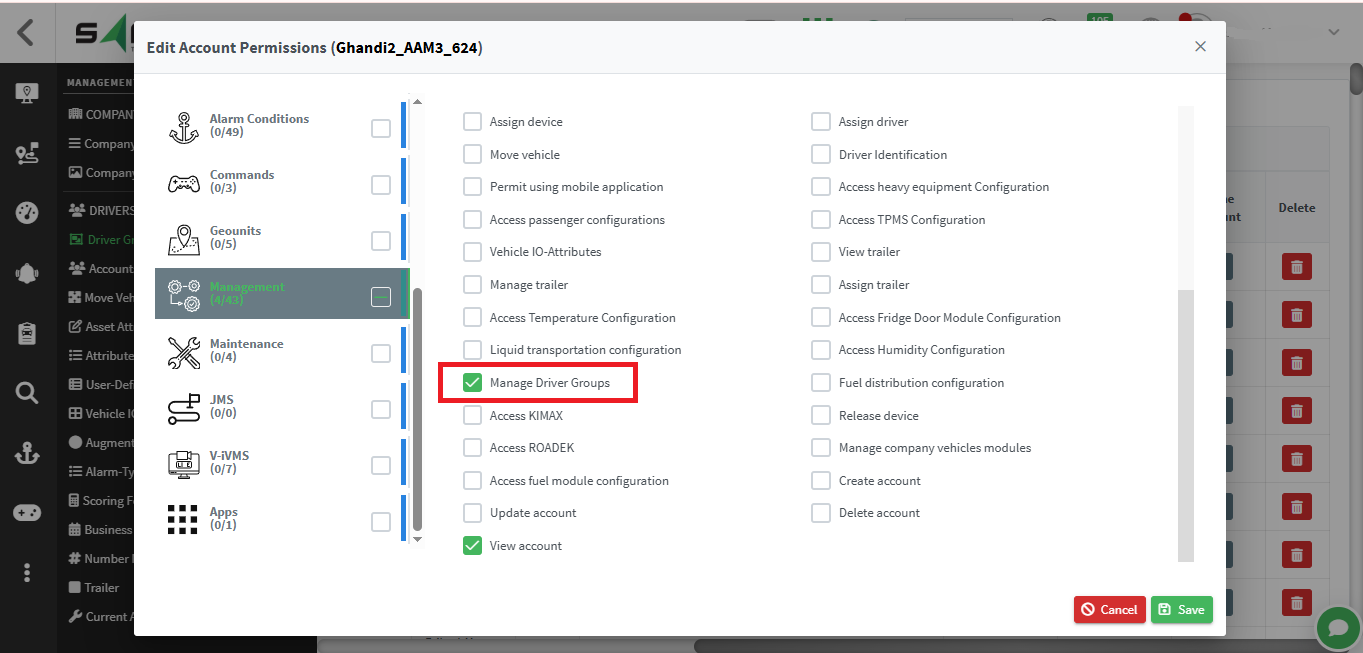
A new Manage Driver Groups permission controls access to the Driver Groups Management page. Users who have it can open the page; users who don’t cannot access it or see it in the menu.

Manage Driver Groups permission

Temperature and humidity in the Vehicle Geofence Movement Details report

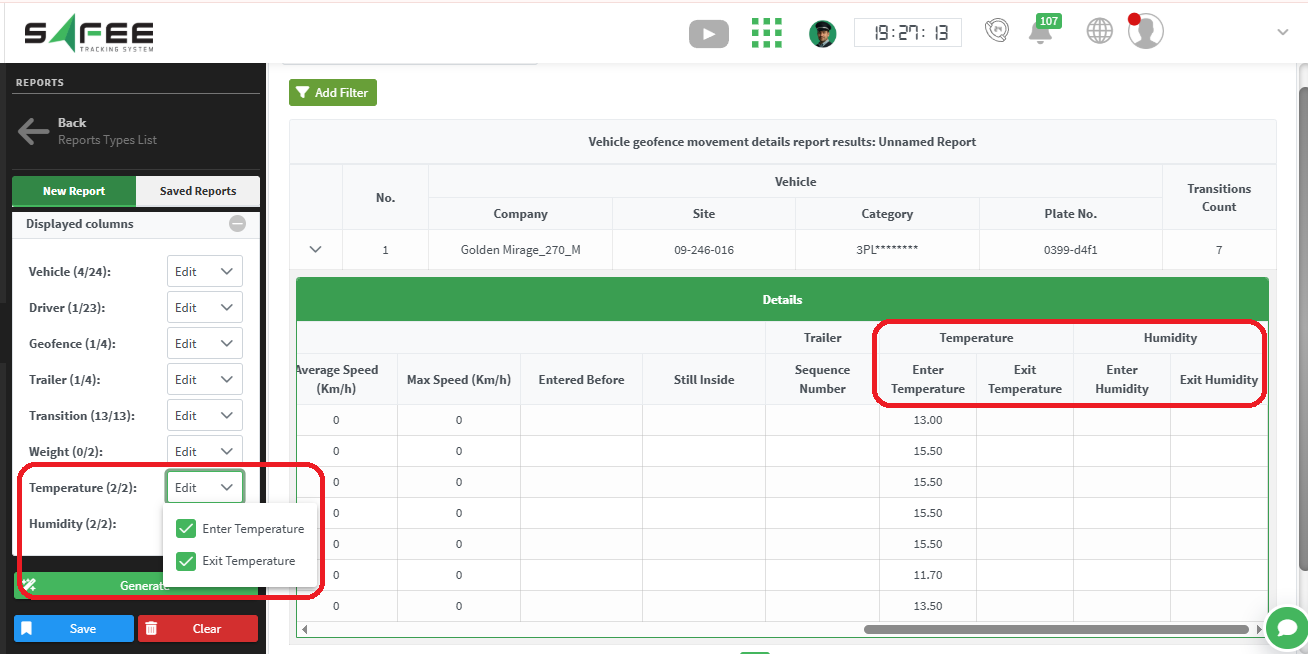
The Vehicle Geofence Movement Details report can now show temperature and humidity readings when a vehicle enters and exits a geofence, giving better visibility into environmental conditions during movements. Displaying them is optional.

Temperature and humidity columns in the geofence movement report

Available columns:

  • Enter Temperature – latest reading available when entering the geofence.
  • Exit Temperature – latest reading available when exiting the geofence.
  • Enter Humidity – latest humidity reading when entering.
  • Exit Humidity – latest humidity reading when exiting.

Select these columns from the Displayed Columns option. They are also included in the Excel export, and when a value is unavailable the report shows –.
WASL enhancement

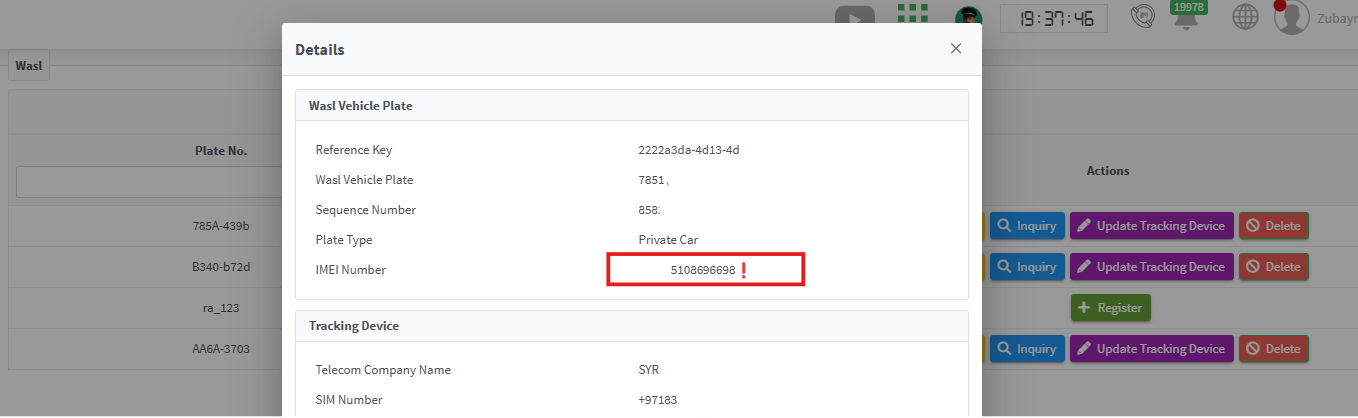
Wasl registration details now show a warning indicator when the tracking device’s IMEI differs from the IMEI of the device currently assigned to the vehicle.

IMEI mismatch warning in Wasl registration details

Click update Tracking Device and the newly assigned device’s details are filled in automatically; complete the remaining fields and click Edit to register the new device in Wasl.
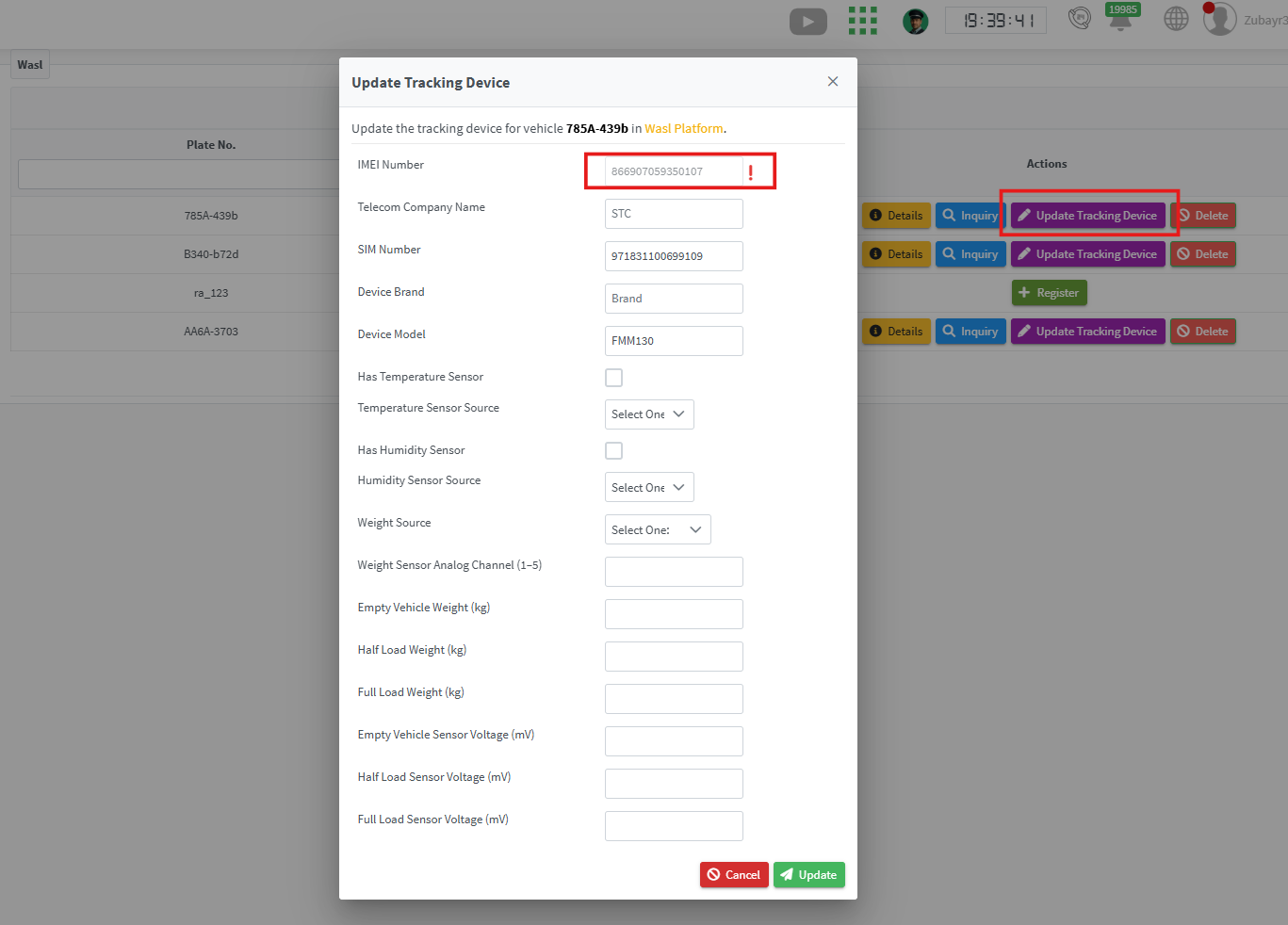
Update Tracking Device in Wasl registration

Audit Log Explorer: cleaner and more compact

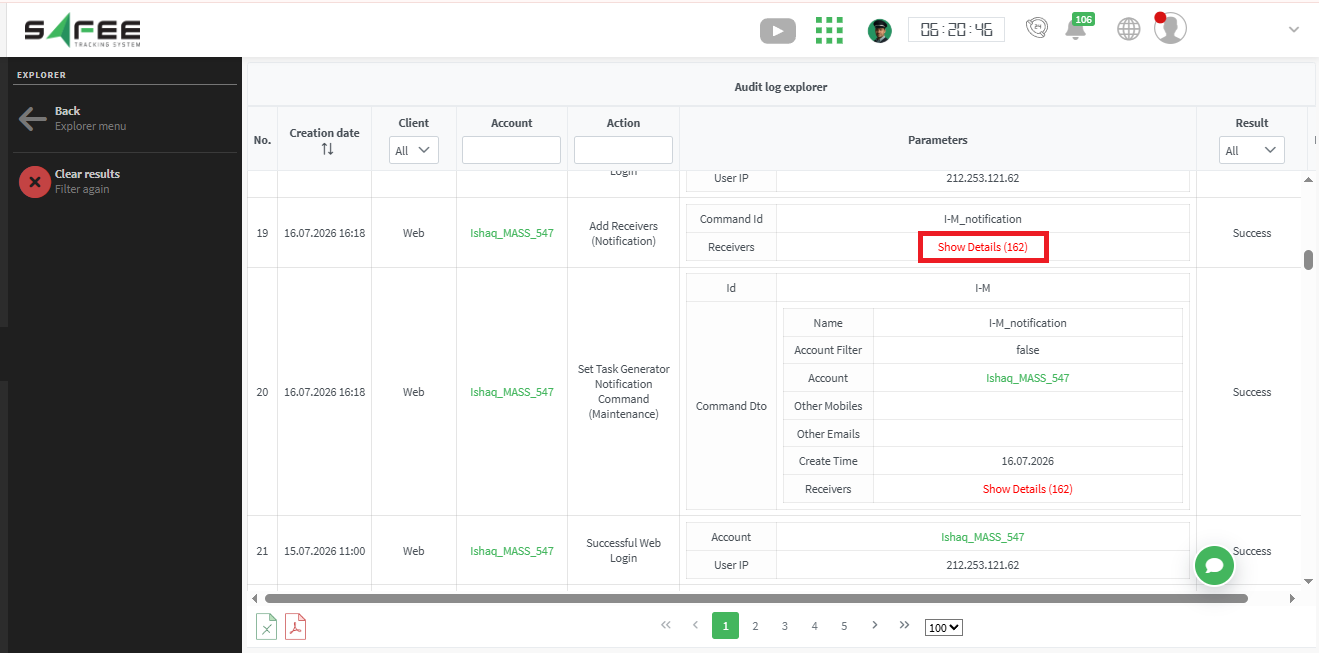
Large items in the Audit Log Explorer are now collapsed by default, and a new Show Details button expands them when needed, making it easier to navigate and review audit logs at a glance.

Show Details button in the Audit Log Explorer
Safee Tracking System

Ready to improve your fleet operations?

Tell us what you would like to improve. A Safee specialist will reply by email.

Usually replies within one business day • No sales spam

Your details are used only to respond to your request. Privacy Policy

Scroll to Top